Instagram Stories represent one of the most engaging forms of ephemeral social media. Creators, news outlets, and community leaders frequently share breaking announcements, live event coverage, and temporary tutorials through this format. However, because Stories automatically expire after twenty-four hours, valuable clips can easily be lost forever.
Understanding how the Story lifecycle works and having a realistic archiving plan helps you keep important information available. This guide walks through what happens to a Story after twenty-four hours, how the SSSInsta Story tool handles a public link today, and what to do when the link returns nothing.

What the Story Tool Currently Confirms
We want to be straight with you before the steps. Story downloads on SSSInsta are not confirmed yet, and the tool page says so. A public Story or Highlight link can be pasted into the Story box, but whether a file comes back depends on the link and on Instagram's side of things. Because of that, treat the tool as a quick first attempt, not a guaranteed backup.
If a Story is time-sensitive, capture it early rather than waiting until the last hour. A link that works once may not work on a second try, and expired Stories cannot be recovered by any third-party tool.
The Ephemeral Nature of Instagram Stories
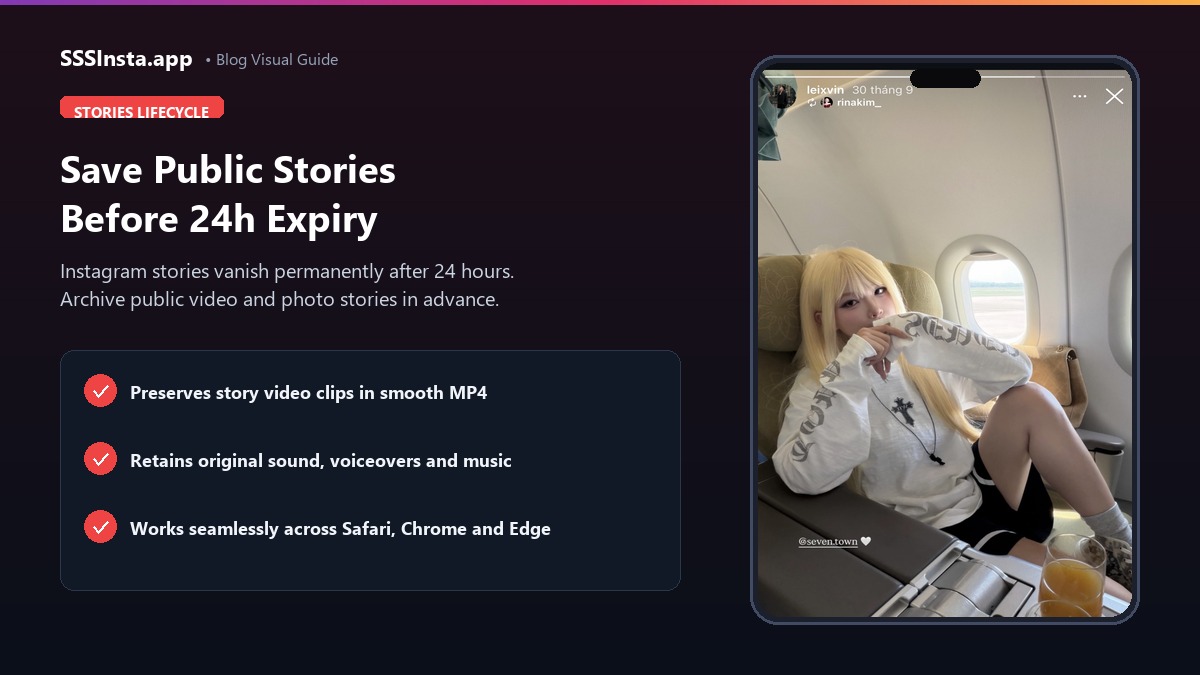
When an account publishes a Story, the platform starts an automated twenty-four-hour countdown timer. Once that duration elapses, the Story disappears from the public profile ring. It will no longer show up in follower feeds. For the original publisher, expired Stories move into a private account Archive. For viewers, however, the content becomes entirely inaccessible unless the creator pins it into a profile Highlight.
Because Highlights depend entirely on creator choices, viewers who wish to reference announcements or recipes must take proactive measures. Taking manual screen recordings often introduces recording frames, battery warnings, and notification banners. A dedicated Instagram story downloader is worth trying first, precisely because a clean file beats a recording when one is available.
Step 1: Check Public Status and Retrieve the Story Link
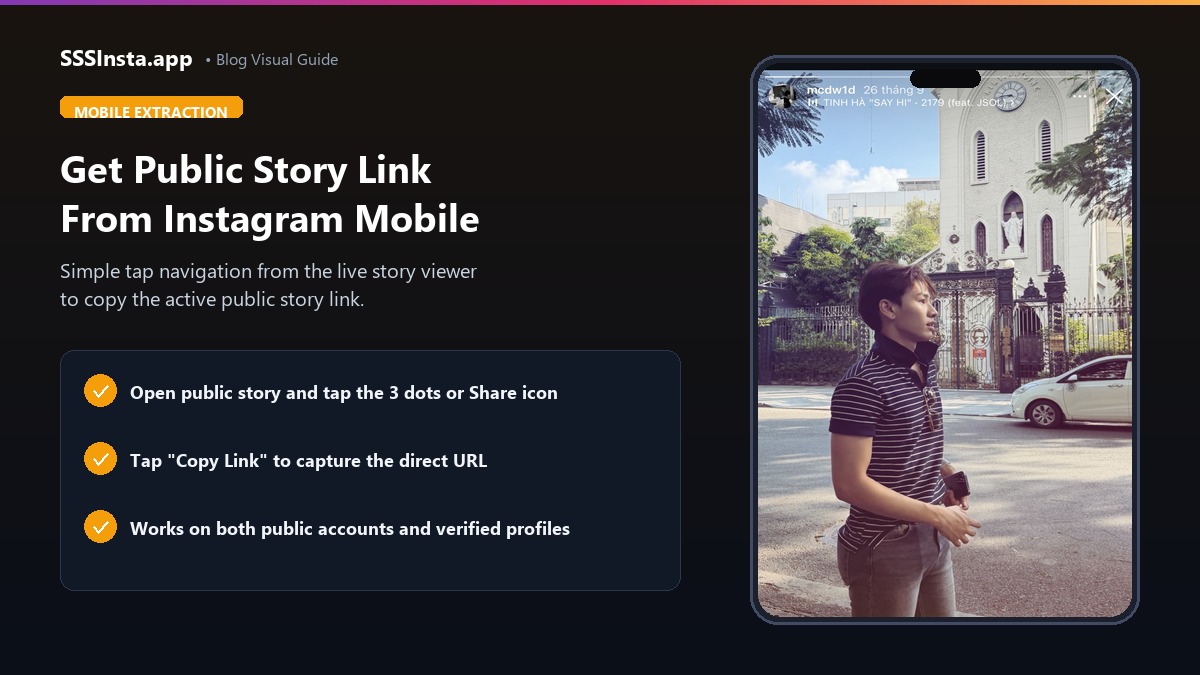
The primary prerequisite for saving any Story via web tools is that the target account must be public. Stories published by private accounts are protected by platform authentication rules. External tools cannot bypass these privacy safeguards. To get the link from a public Story, proceed as follows:
- Launch the Instagram mobile app or open the website on your desktop computer.
- Open the active Story of the public account you wish to save.
- Tap the paper-plane share icon located at the bottom right corner of the story interface.
- Select Copy Link from the sharing sheet options.
- If viewing on desktop, copy the URL directly from your browser address bar while the story is actively playing.
Step 2: Enter the Story Link into SSSInsta
Once you have captured the link, you do not need to install specialized mobile applications. SSSInsta runs entirely within your existing mobile or desktop web browser. It requires no personal account details.
- Open Safari, Chrome, Firefox, or any modern web browser.
- Visit SSSInsta and access the Story download section.
- Paste the copied URL into the central input field.
- Press the Download button to trigger the server lookup.
Step 3: Download the Story File, If One Is Returned
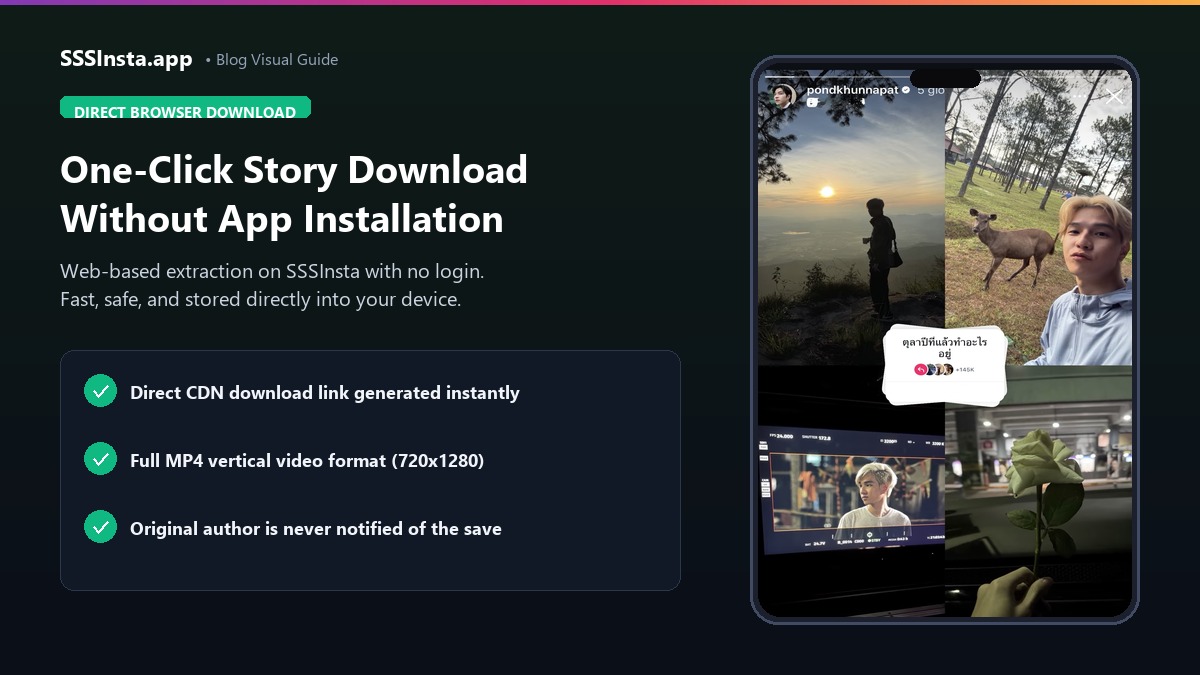
If the link resolves, the tool shows a media card for the Story. A still Story usually arrives as a JPEG and a video Story as an MP4 clip. If nothing is returned, that does not mean you copied the link wrong; it means the request did not resolve this time. The next section covers that case.
- Verify that the preview thumbnail matches the Story you intended to save.
- Click or tap the download button to begin transferring the file.
- On iPhone or iPad, the file will be saved inside the Files app under Downloads. Open the file and tap Share followed by Save Video to transfer it directly into your Photos camera roll.
- On Android smartphones, the MP4 video downloads directly to your device storage. It appears immediately inside your default Gallery app.
- On personal computers, save the file to your designated video archive folder.
When the Story Link Returns Nothing
Story links are short-lived and tied to an active session, so failures are normal rather than exceptional. Work through these in order:
- Open the Story in the Instagram app first. Some links only resolve while the Story is actively viewable in the app or on the web profile.
- Retry with a clean URL. Remove query parameters and paste only the instagram.com/stories/ address.
- Check the account status. A private account, or a Story that was just deleted, cannot be fetched by any web tool.
- Fall back to screen recording. Start the recording, let the Story play once, then stop. Trim the first and last frame to remove interface overlays.
Why a Direct File Beats Screen Recording, When You Can Get One
Many smartphone users rely on native screen recording tools when trying to save temporary video clips. While screen recording works in an emergency, it suffers from noticeable technical drawbacks:
- UI Overlay Clutter: Screen recordings capture creator profile handles, reply boxes, progress indicator bars, and unexpected message banners.
- Audio Compression: Microphone routing or system audio capture can reduce sound fidelity and introduce background distortion.
- Variable Framerates: Screen recording often drops frames during rapid motion, leading to choppy playback compared to native video files.
When a direct file is available, it fetches the same source the browser receives, which keeps framerates smooth and audio clean. When it is not, a trimmed screen recording is still better than losing the Story entirely.
Organizing Your Saved Stories for Long-Term Reference
Once you begin downloading Stories regularly, maintaining a clean folder structure prevents digital clutter. On desktop computers, create dedicated subdirectories organized by creator name, event date, or project topic. On mobile devices, create separate albums inside your Photos or Gallery app.
This organized archive proves invaluable for social media managers tracking competitor campaigns, students reviewing recorded presentations, or individuals saving memorable family milestones before they vanish.
Ethical Guidelines When Archiving Public Content
Saving public Stories for offline study, personal inspiration, or reference is common practice among content marketers and students. However, respecting creator rights remains crucial:
- Do not re-upload someone else's Story content as your own without explicit permission.
- Always credit the original publisher if referencing their visual materials in educational or analytical discussions.
- Respect the privacy boundaries of individuals who choose to remove their public posts.
By keeping these principles in mind, you can preserve temporary information safely and honestly, whether the file comes from SSSInsta or from a fallback you control.