Instagram Reels have transformed the way short-form video content is consumed and shared online. From concise cooking tutorials and travel showcases to comedic sketches and fitness routines, millions of entertaining clips are published every single day. Frequently, you will come across a Reel that you want to keep for offline viewing, share with friends outside of the platform, or reference during travel.
While the Instagram application includes a bookmarking feature, bookmarked posts require an active internet connection to load. They will also disappear if the creator deletes the original video. In this tutorial, we will explain how to download public Instagram Reels using SSSInsta and troubleshoot the most common issues that cause download attempts to fail.

Step 1: Check Public Status and Copy the Link
The single most important rule when downloading Instagram content through web services is that the source post must be publicly visible. Downloader tools work by fetching data from public web links. They cannot log into your personal profile or access private account feeds. To begin:
- Open Instagram on your phone or in your computer browser and find the Reel you wish to save.
- Ensure that the profile publishing the Reel is not set to private mode.
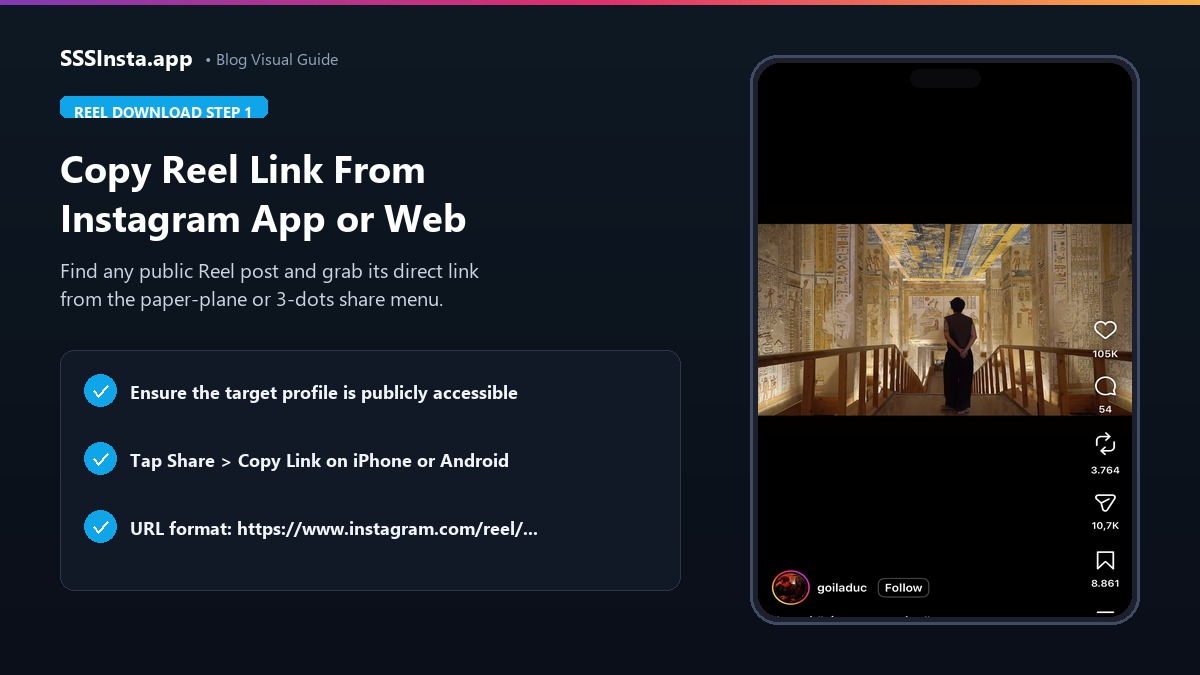
- Tap the paper-plane icon on the right side of the Reel interface or click the three vertical dots.
- Select Copy Link from the popup menu.
- Verify that your clipboard now holds an address formatted like instagram.com/reel/ followed by an alphanumeric string.
Step 2: Paste the Reel URL into SSSInsta
You do not need to download questionable third-party software from app stores. You do not need to install browser extensions that request broad permissions. SSSInsta operates entirely as an online web service accessible from any modern browser.
- Open Safari, Google Chrome, Mozilla Firefox, or Microsoft Edge.
- Navigate to the SSSInsta homepage or the dedicated Reels tool section.
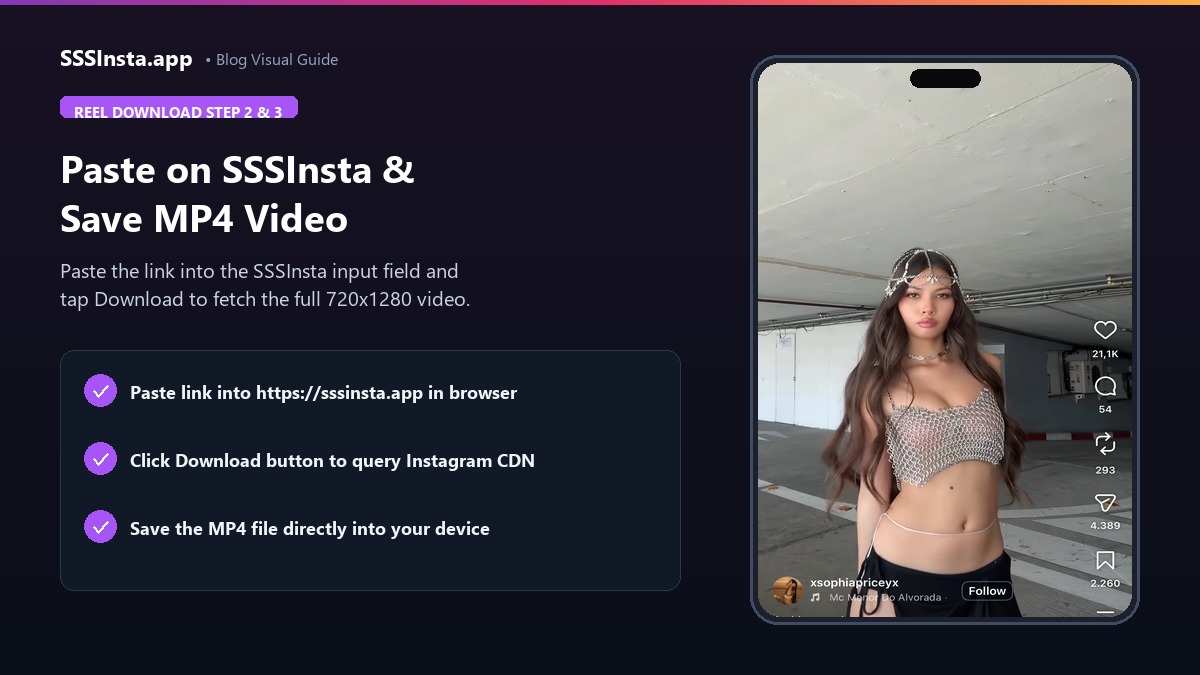
- Click or tap into the central link input box and paste your copied Reel URL.
- Press the Download button to initiate the link parsing procedure.
Step 3: Save the MP4 Video File to Your Device
After a short processing period, SSSInsta presents the video thumbnail preview alongside a clearly marked download button. Follow these platform-specific steps to store the file locally:
- Tap the Download MP4 (HD) button on the results card.
- On Apple iPhone and iPad: Safari will ask if you want to download the file. Tap Download. Once finished, tap the download icon in the address bar and open the file in the Files application. From there, select Share and tap Save Video to place the clip into your Photos camera roll.
- On Android Smartphones: The browser will automatically save the MP4 video to your device Downloads folder. It will immediately show up in your phone Gallery or Google Photos app.
- On Windows and Mac Computers: The file saves straight to your default Downloads folder. It can be opened in any standard video player such as VLC or QuickTime.
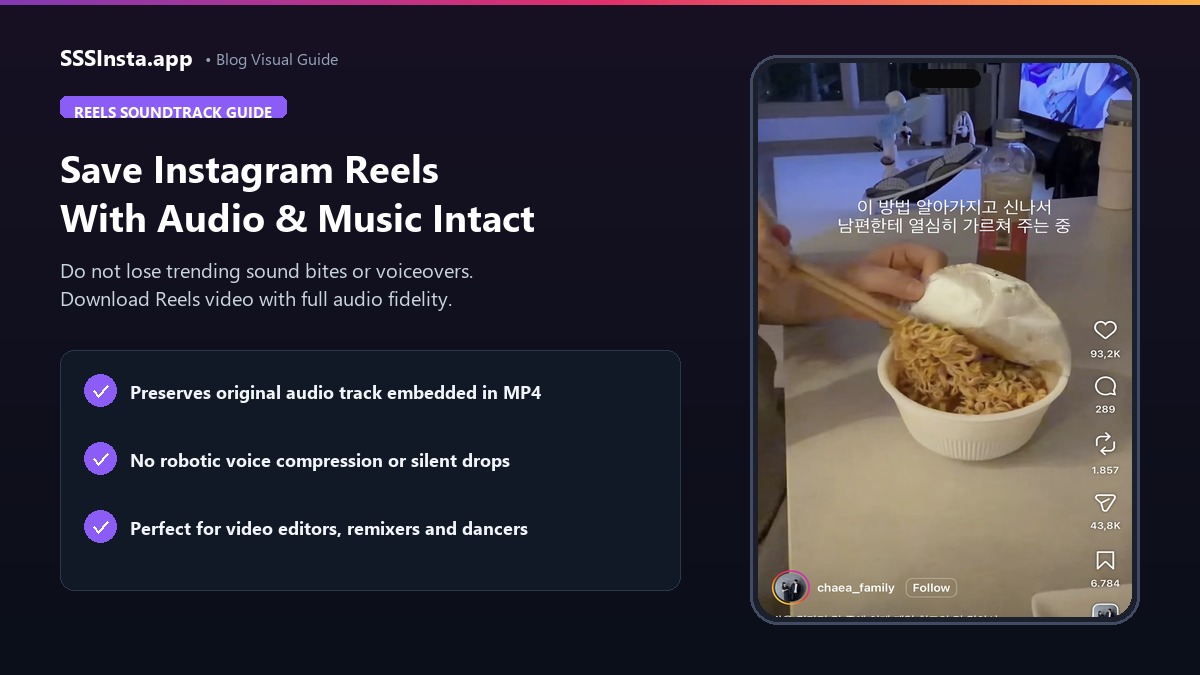
For users interested in saving sound bites or music from clips, our companion guide on saving Reels with audio details how soundtracks remain synchronized during the download process.
Troubleshooting: Why Reel Downloads Fail and How to Fix Them
While the download process is usually smooth and instantaneous, occasional errors can occur. Understanding what causes these hiccups helps you resolve them quickly:
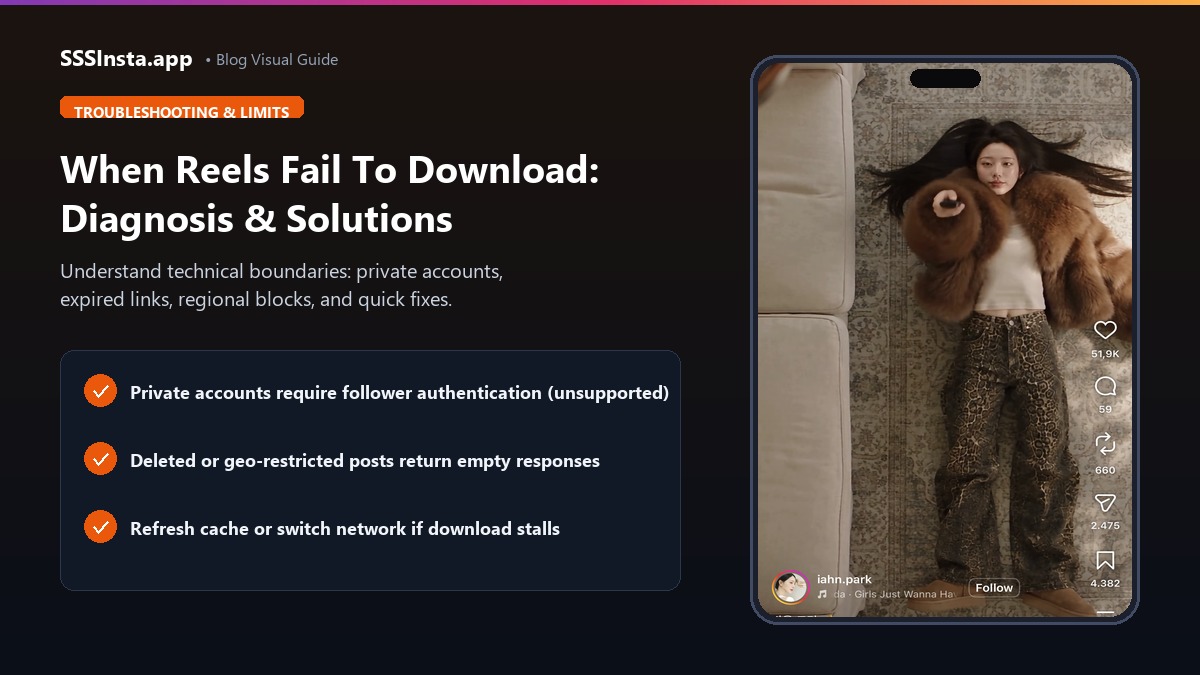
- Private Account Protection: If a Reel was shared from a private profile, external tools cannot reach the video file. You can verify account status by opening the profile in a private incognito tab without logging into Instagram. If a lock symbol appears, the post cannot be downloaded.
- Deleted or Geo-Restricted Videos: If an account removes the Reel or restricts it to specific geographic regions, the link becomes invalid and returns an empty response.
- Temporary Network Timeouts: High traffic volume or unstable mobile network connections can interrupt data transmission. If a download stalls, switch between Wi-Fi and mobile data or refresh your browser tab.
- App Cache Clutter: If the download button appears non-responsive on your mobile browser, clear your browser cache and cookies. You can also open an incognito window to eliminate conflicting script data.
Preserving Video Quality and Aspect Ratio
Instagram Reels are recorded in a vertical 9:16 aspect ratio designed for modern smartphone displays. When SSSInsta processes a link, it retrieves the original MP4 file without cropping the sides or stretching the video dimensions.
This faithful preservation ensures that text captions, stickers, and on-screen graphics positioned near the borders remain legible. You can re-watch tutorials or share clips with friends knowing that the presentation looks exactly as the creator intended.
Technical Boundaries That No Tool Can Bypass
It is important to maintain realistic expectations regarding third-party downloading tools. SSSInsta strictly respects technical and ethical boundaries:
- No third-party tool can download content from private profiles without valid credentials.
- Archived or permanently deleted posts cannot be recovered once removed from the host servers.
- Downloaded files are intended for offline study, backup, and personal viewing rather than unauthorized commercial redistribution.
By understanding these guidelines and using SSSInsta, you can effortlessly save your favorite public Instagram Reels for smooth offline viewing anytime.