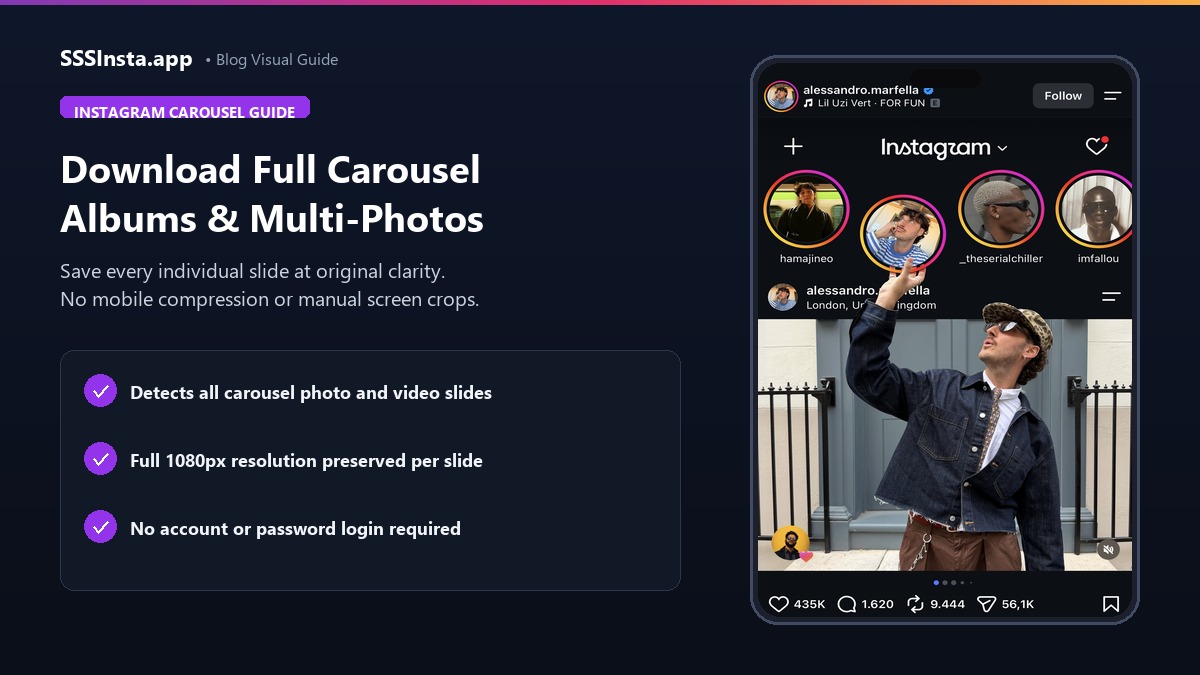
Instagram carousel posts allow creators to bundle up to ten photos or short video clips into a single swipeable album. Many creators publish educational visual breakdowns, portfolio showcases, and product series through this format. However, Instagram does not provide an integrated button to save these multi-slide albums directly to your device.
Many users resort to taking manual phone screenshots to preserve individual slides. While screenshotting seems convenient, it captures interface icons and reduces image clarity. This guide covers how a carousel link is handled by SSSInsta, what the output usually looks like, and how to keep a clean copy of each slide when the album does not come back in one piece.

What SSSInsta Confirms, and What It Does Not
A single public photo post is the case we have tested: paste the link, and the tool returns the JPEG Instagram hosts for that image at its uploaded resolution. A multi-photo carousel is a different case. Carousel extraction on SSSInsta has not been confirmed, so the number of slides returned can vary. Some links come back with one image, some with several, and some with nothing usable.
The workflow comes first and the fallback second: if the album returns every slide, use it. If not, the later sections cover the rest.
Why Mobile Screenshots Degrade Carousel Quality
Taking a screenshot of an Instagram post might preserve immediate visual content. However, it introduces severe technical compromises. Mobile operating systems capture only what fits on your physical display panel. Viewing a high-resolution landscape photograph on a compact mobile screen scales the picture down.
Furthermore, screenshots include navigation arrows, slide pagination dots, like buttons, and battery icons. Cropping those elements manually wastes time and further reduces the final pixel count. A dedicated Instagram photo downloader avoids screen capture altogether: when the link resolves, the file you get is the JPEG Instagram hosts, not a recording of your display.
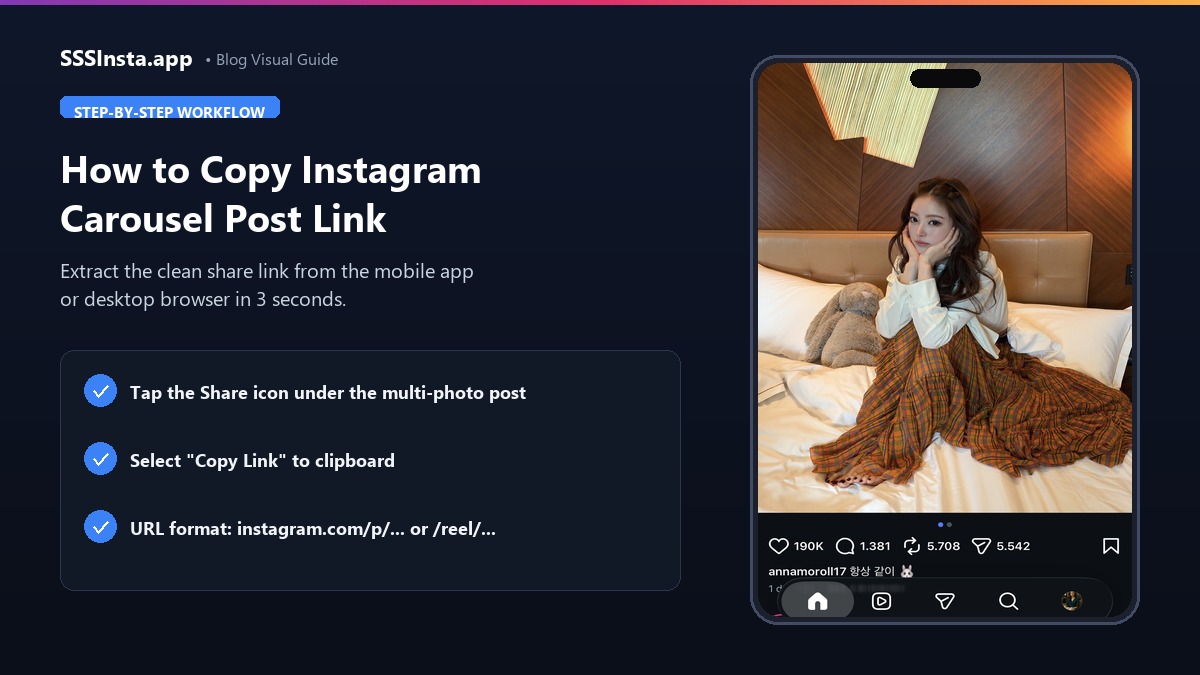
Step 1: Locate the Carousel and Copy the Share Link
Before initiating any download, confirm that the profile hosting the multi-photo post is public. Third-party web downloaders can only access content that is openly visible to all visitors. Once confirmed, follow these steps to retrieve the correct post address:
- Open the Instagram mobile application on your smartphone. You can also visit the official website in any desktop web browser.
- Navigate to the carousel post containing the slides you wish to preserve.
- Tap the paper-plane share icon located below the post. Alternatively, click the three horizontal dots in the upper right corner.
- Select the Copy Link option from the action menu. The URL will be saved to your device clipboard.
Step 2: Paste the URL into the SSSInsta Extractor
With the carousel link safely copied to your clipboard, open your preferred web browser. SSSInsta functions entirely online. You do not need to install suspicious mobile applications or browser add-ons.
- Navigate to the SSSInsta photo tool page.
- Tap or click inside the input field and paste the copied link.
- Press the Download button adjacent to the input box.
- Allow a few seconds for the server to parse the album structure and locate the respective media files.
Step 3: Save the Slides the Tool Returns
When the link resolves, the tool lists the media it can find for that post. On a single photo post that means one JPEG. On a carousel, the list may contain one slide or several, because carousel extraction is not confirmed. Treat the result as a starting point rather than a promise of the full album.
- Count the preview cards against the slide counter Instagram shows on the post, so you know whether the album is complete.
- Click or tap the download button under each photo you want to archive.
- On iOS devices using Safari, confirm the download prompt. Locate your files inside the Files application under Downloads.
- On Android smartphones using Chrome, the JPEG images download directly into your Downloads folder. They appear in your Gallery.
- On desktop computers, right-click the button and select Save Link As to choose a custom local folder.
Managing Multi-Slide Albums on Your Device
When downloading an album containing eight or ten photos, keeping files organized is essential. On mobile devices, move the downloaded pictures from your temporary Downloads directory into a dedicated folder. Name the folder after the creator or topic. This practice prevents files from getting mixed up with random web downloads.
For creative professionals who collect design inspiration or market research, a returned JPEG keeps typography, color palettes, and fine details intact for later review. That is the practical advantage over a screen grab, even when you only recover part of the album.
If Only One Slide Comes Back
This is the most common carousel outcome, and it is not a bug on your end. When the extractor returns a single image, you still have options that beat a full-screen screenshot:
- Open each slide in the app and screenshot at full screen. Then crop the borders. On a modern phone the slide fills most of the display.
- Try the direct post URL. Sometimes the copied share link carries extra tracking parameters. Paste the clean instagram.com/p/ address instead and run it again.
- Use a desktop browser at the widest window size. A larger viewport renders the slide at a higher pixel size before you capture it.
- Ask the creator. For portfolio or product carousels, a polite request often gets you the original files, which no downloader can improve on.
Preserving Metadata and Visual Integrity
Unlike screen capture tools that strip technical metadata, direct file downloading keeps image dimensions consistent. Professional photographers and graphic artists often rely on specific color profiles that compress poorly under basic screen grabs.
When a slide comes back as the source JPEG, color gradations and shadow details stay clean. You can zoom in on complex infographics or fine details without the soft edges that appear when a screenshot is scaled up.
Troubleshooting Common Carousel Download Issues
If the download tool fails to retrieve a carousel album, consider the following potential causes and their practical solutions:
- Private Account Restrictions: If the publisher account is private, external web downloaders cannot access the media. The content must be publicly accessible.
- Mixed Media Carousels: Some carousels combine both still photos and short video clips. Ensure that your media player supports both JPEG images and MP4 video playback.
- Malformed Link Syntax: If you copied the link from an indirect source, ensure that the URL follows the standard format starting with instagram.com/p/.
- Browser Caching Conflicts: If the download button appears unresponsive, reload the webpage. You can also open a private browsing session to clear temporary script locks.
Used this way, SSSInsta handles the single-photo case cleanly and gives you a reasonable first attempt at carousels. When the album does not come back whole, the fallbacks above keep your archive usable without pretending the tool does more than it does.